A menu bar app for the Mac

Project folders, found fast.

Type a job number or a few letters of its name, press Return, and the folder opens in Finder. Works with the folders, drives and shares you already have.

Coming soon to the Mac App Store Take the tour

Sample projects from the app’s demo folders. Every name is invented.

  • 1keyboard shortcut opens the search from any app
  • 0accounts, analytics, ads or trackers
  • 4kinds of network share: SMB, AFP, NFS and WebDAV
  • 26,000+projects in our stress tests, still filtered as you type

Why Chatoyance

Your filing stays put. Finding it gets quick.

Built for architecture, engineering, construction and design firms — and anyone else who keeps a folder per job.

  • Five folders deep to reach one job.

    Type a few letters, press Return

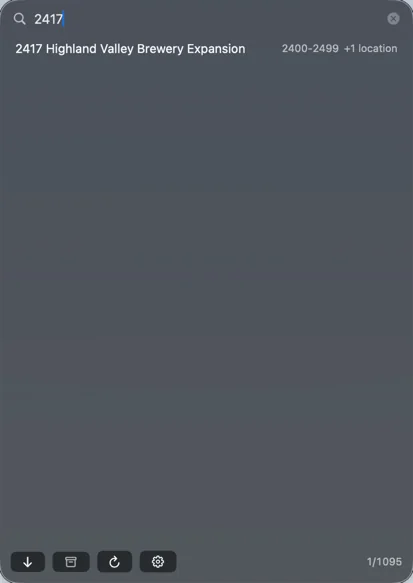
    Type 2417 or library. Every word you type must match, in any order. Arrow keys and Return, a double-click, or drag a project straight into Finder or an Open dialog.

  • Every office files a little differently.

    Any folder layout

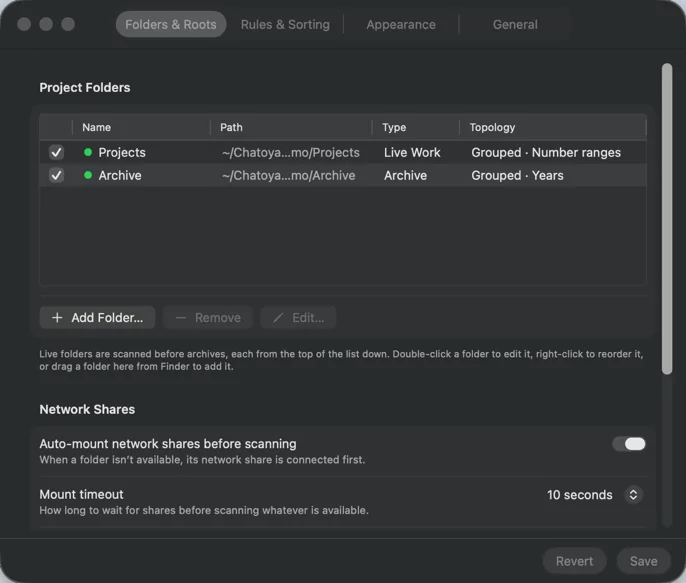
    One folder of projects, or grouped by number range, year or client, one or two levels deep — or at any depth. It reads your folders as they are, and never moves or renames anything.

  • Live work here, the archive on the server.

    Drives and shares, as one list

    Folders on this Mac, external drives and network shares are searched together. Shares connect before each scan, with passwords in your keychain; offline projects stay searchable, dimmed.

Fits the way you already file

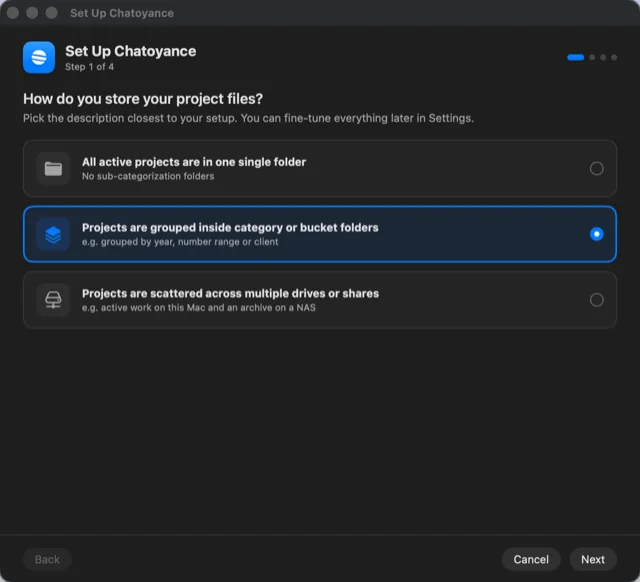
Tell the setup wizard how your projects are stored and it finds them — the buckets, years and client folders become groups, and each job is one row.

listed as a project

By number range
  • Projects
    • 2300-2399
    • 2400-2499
      • 2417 Highland Valley Brewery Expansion
      • 2401 …
By year
  • Archive
    • 2023
    • 2024
      • 2024-128 Brand Refresh
      • 2024-083 Seasonal Campaign
By client
  • Clients
    • Alder Atelier
      • 2025-334 Product Launch Kit
      • 2024-328 Logo Suite
    • Birchwood Roastery

Take the tour

A small panel. A lot of folders.

  • Set up in a minute

    The wizard asks how your projects are stored, has you choose the folders, and previews what it finds.

    The setup wizard, step 1 of 4: “How do you store your project files?” with “Projects are grouped inside category or bucket folders” selected.
  • Type the job number

    A job filed in two places — live and archived — is still one row.

    The search panel with 2417 typed: one result, 2417 Highland Valley Brewery Expansion, marked 2400-2499 +1 location.
  • Grouped by client

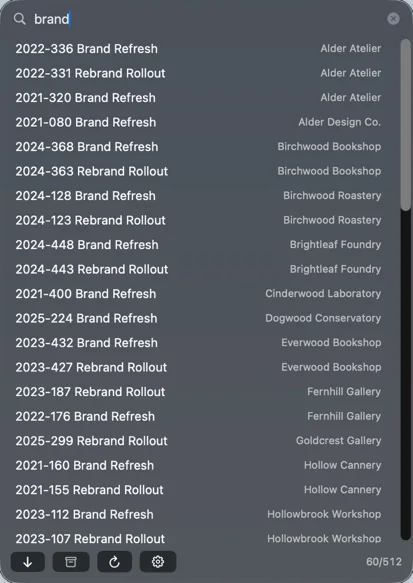
    Studios that file by client see each job’s client beside it.

    The search panel with “brand” typed, listing jobs such as 2022-336 Brand Refresh with client names like Alder Atelier on the right.
  • Archives, handled

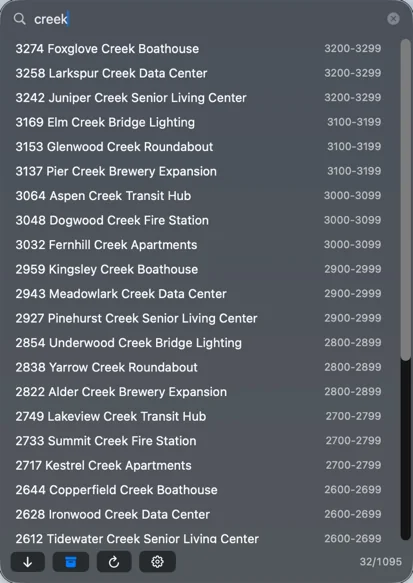
    Finished jobs stay out of the way until you click the archive button — even ones packed into a zip or disk image.

    The search panel with “creek” typed and the archive button on, listing 32 matching projects, archived ones included.

Privacy

Chatoyance collects no data.

  • No accounts
  • No analytics, ads, tracking or crash reporting
  • Connects only to file servers you set up
  • Everything stays on your Mac

Chatoyance Privacy Policy

Effective October 2026

Chatoyance is a Mac menu bar app for finding and opening project folders. It collects no data.

What the app does not do

It has no accounts, analytics, advertising, tracking or crash reporting. It sends nothing to the developer or to anyone else.

What stays on your Mac

Your settings, saved configurations and the list of projects it found are kept in the app’s own folder on your Mac. Permission to read the folders you choose is kept in the app’s preferences. Passwords for network shares are kept in your macOS keychain.

Network connections

The app connects only to file servers you add yourself, to mount the shares that hold your projects. Those connections go to your server, never to the developer.

Children

The app collects no information from anyone, including children.

Changes and contact

If this policy changes, the new version will be posted on this page. Questions: support@chatoyance.app.

Support

Questions, problems or ideas.

Email support@chatoyance.app and we’ll get back to you.

Getting started

After launch, Chatoyance lives in the menu bar as a small banded stone. Click it to search; right-click it for Preferences, Rescan and the Setup Wizard. The wizard asks how your projects are stored and shows a preview of what it finds.

A location says “Needs access”

macOS only lets the app read folders you have chosen. Click Grant… and choose the folder.

A network share isn’t found

Open Preferences › Folders & Roots, select the location and enter the share address (for example smb://server/Projects). Saved passwords are kept in your keychain.

The wrong folders are listed as projects

Run the Setup Wizard again, or change the naming rule and ignore list under Rules & Sorting.

A client folder with several jobs should be a group

Open the folder’s editor (Preferences › Folders & Roots › Edit…) and turn on “A folder that contains projects is a group”.

A job has phases or episodes that should be listed too

Turn on “List sub-projects inside projects” in the folder’s editor; a sub-project pattern lets you match names of your own.

Can it find projects by what’s inside them?

Yes — a folder can count as a project when it holds a marker, such as a .git folder. Choose “Contains a marker” as the naming rule under Rules & Sorting, and pick from the built-in marker sets or add your own.

Can zipped or imaged jobs be listed too?

Turn on “List archive files as archived projects” in the folder’s editor. Zip, 7z, RAR, tar, StuffIt archives and disk images named like a project are listed as archived.

What happens to Finder aliases?

An alias is followed to its real folder, as long as that folder is inside one of the folders you’ve already added. One pointing anywhere else is ignored.

How do I set a keyboard shortcut?

Preferences › General › Global shortcut.

How do I move my setup to another Mac?

Use Configurations › Save to File, then Load from File on the other Mac. Folders that are somewhere else there can be relinked in one step.

Every job, one shortcut away.

Coming soon to the Mac App Store